AD:
今週の木曜日に、Sydphpに行ってきました。
今回のお題は、Aimee-Maree Forsstromがmod_phpとfastcgiの比較、Phil Taylorがセキュリティについて話す予定でしたが、急遽が参加できなくなったので、@predominantがオープンソースの活用&運営について話してくれました。
せっかくだったので、自宅にかえって早速fastcgiを導入してみました。
fastcgiの存在は知っていたのですが、導入の経験がないので自宅サーバに導入(CentOS5.5,Apache2.0)検証してみました。
fastcgiについて
@aimee_mareeのスライドはこちらで確認ができます。
mod_phpとfastcgiを比較して、いかにfastcgiがが素晴らしいかを説いてくれました。
@aimee_mareeのまわりでも、圧倒的にmod_phpが一般的で、そのことがかなり腹立たしいとのことです。
要因としては、Apacheの標準であること、ホスティングサーバがmod_phpを使用していること、fastcgiの情報がまだまだ少ないことが原因のようです。
僕の英語力では、70%ほどしか理解できなかったのですが、こちらのページに日本語で詳細が記載してあるのでこちらをご確認ください。
FastCGI環境を構築する – ぱせらんメモ
CentOSにインストール
ちなみに、fastcgiには、mod_fastcgi、mod_fcgidの2種類があるようです。
今回は、mod_fcgidが早いとのことなので、mod_fcgidを導入しました。
検討に参考にさせてもらったサイト
Apache2 – mod_fcgid vs mod_fastcgi
Apache/FastCGI
すこし手間取ったので、そのトラブルと解決方法も記載しておきます。
最新mod_fcgidをcheckout、APXSのエラー
|
|
$ svn checkout http://svn.apache.org/repos/asf/httpd/mod_fcgid/trunk mod_fcgid $ cd mod_fcgid $ ./configure.apxs .configure.apxs must be able to find apxs in your path, or the environment variable APXS must provide the full path of APXS, or you may specify it with: |
httpd-develのインストール&APXSのパスを指定して再度インストール
|
|
$ yum install httpd-devel $ APXS=/usr/sbin/apxs ./configure.apxs $ make $ make install |
mod_fcgidの設定
ちなみに、mod_phpで構築してあるのですが、mod_fcgidとの共存が可能です。
下記のfcgid.confの中で場所を指定出来るようです。
参考サイト
Apache Module mod_fcgid
|
|
$vi /etc/httpd/conf.d/fcgid.conf <IfModule mod_fcgid.c> AddHandler fcgid-script .php <Directory "/home/mizoshiri/work/www/test3.40"> # SetHandler fcgid-script FCGIWrapper /usr/bin/php-cgi .php # DirectoryIndex index.php Options +ExecCGI # AllowOverride None AllowOverride All Order allow,deny Allow from all </Directory> </IfModule> $ /etc/rc.d/init.d/httpd restart |
インストール後は、phpinfo()でmodの中にmod_fcgidが表示されるようになります。
ベンチマークしてみる
せっかくなので、mod_phpとの比較したいので、ベンチマークをやっておきました。
phpのベンチマーク
PHPのベンチマークはPearのBenchmark
下記のコマンドでインストール
ベンチマークは、下記の参考サイトにある、フィボナッチ数列のベンチマークを使用しました。
僕の認識では、php自体の処理に関しては、変わらないはず。間違ってるかな???結果的には、やはりほぼ変わらず。
コードの最適化に役立つPHPスクリプトのベンチマーク
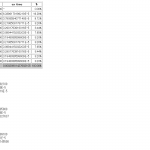
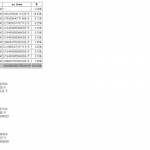
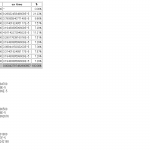
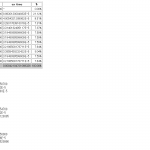
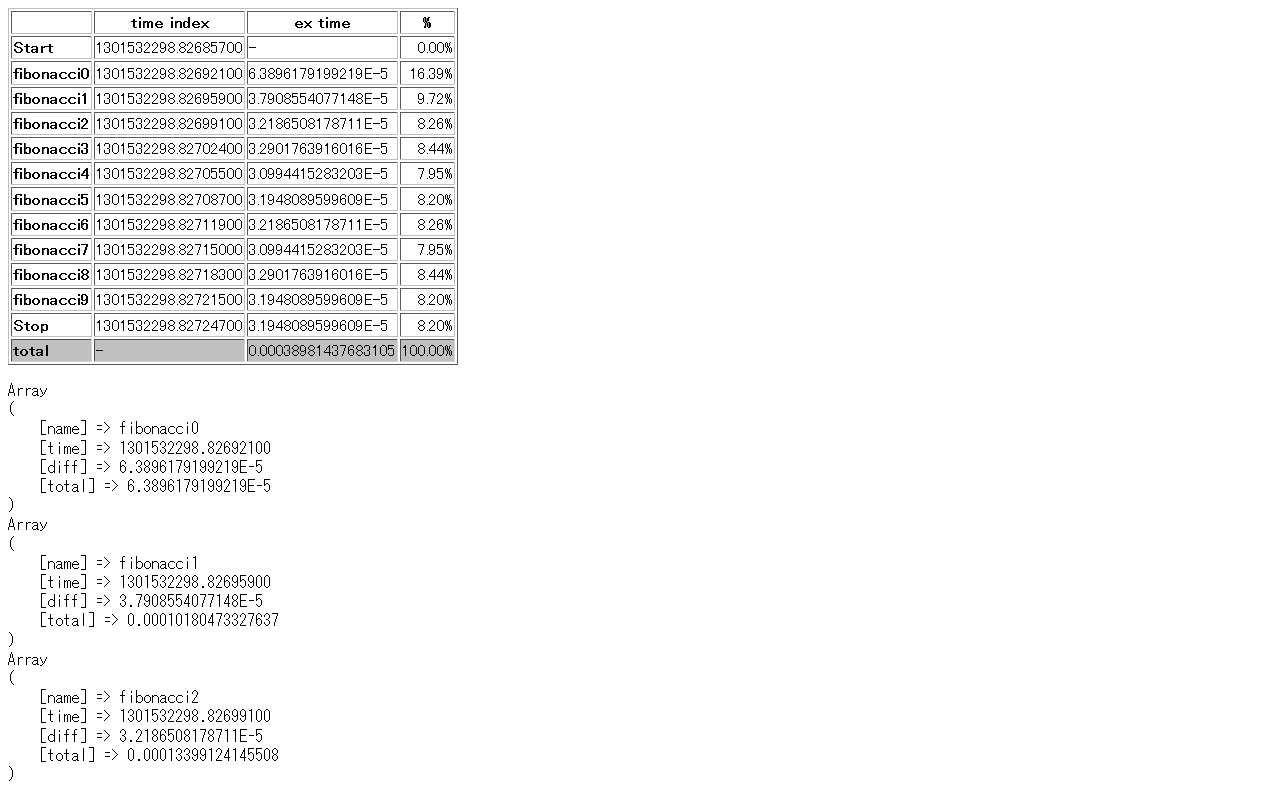
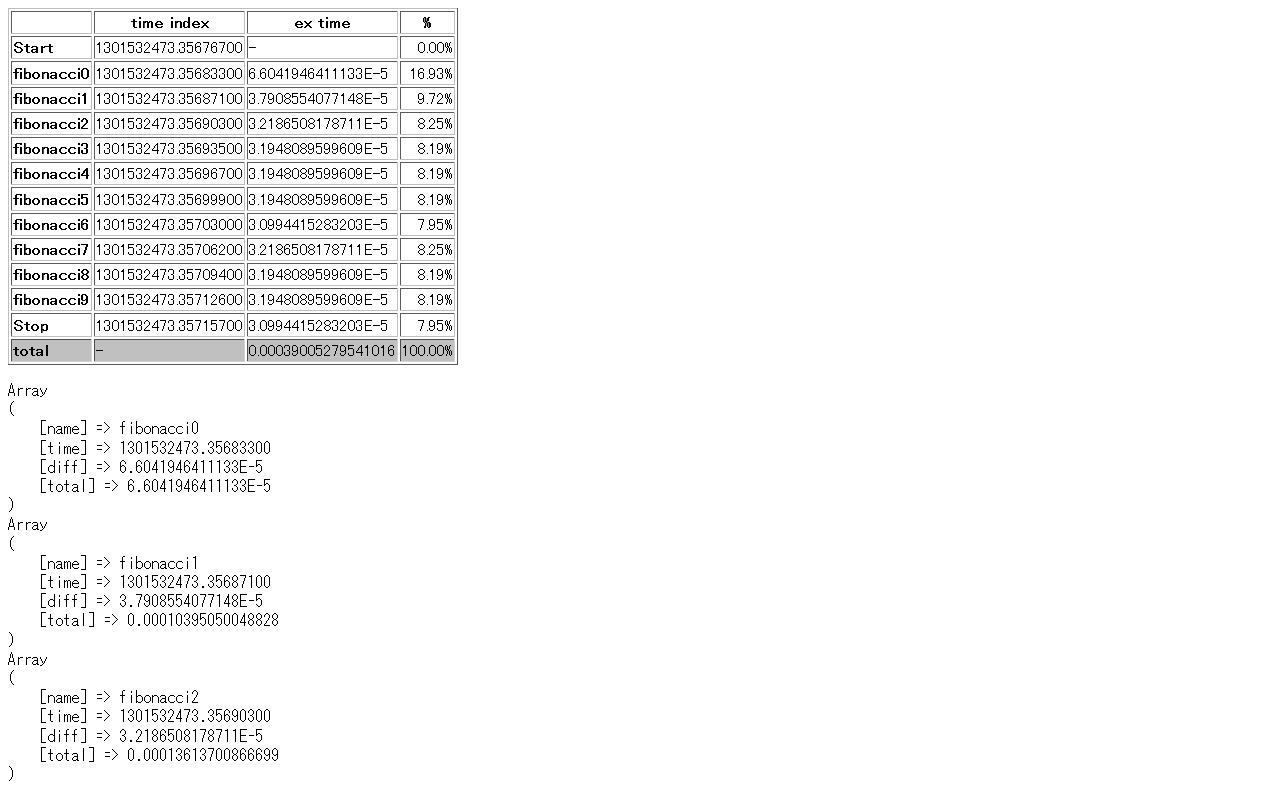
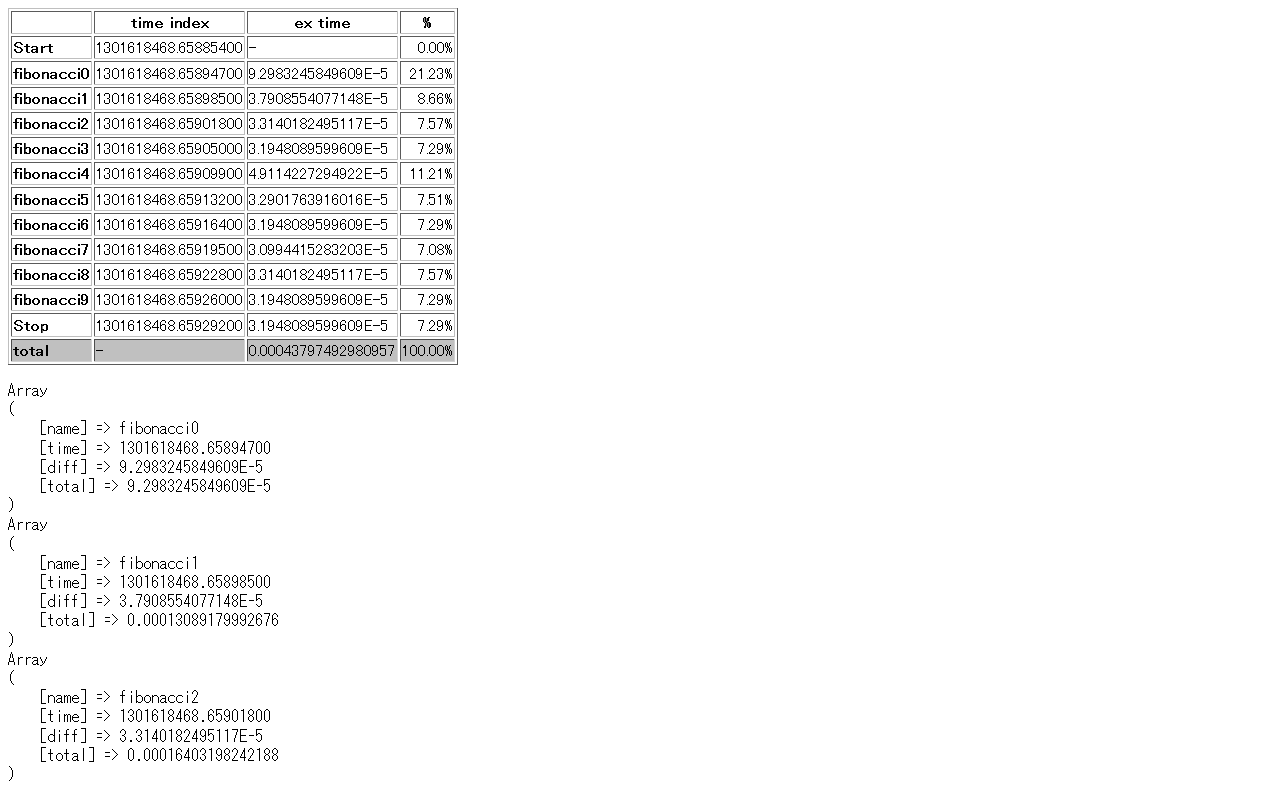
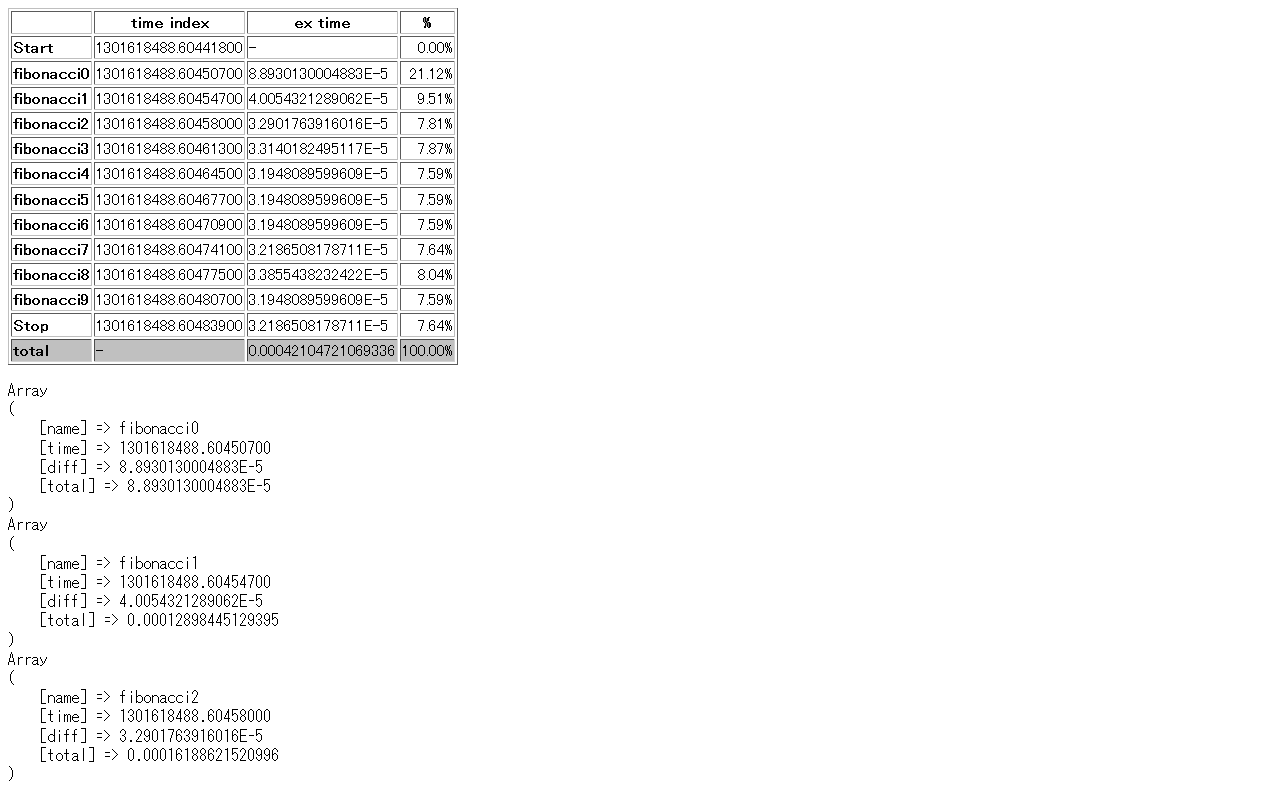
PHPのベンチマーク結果
導入前
導入後
Apacheのベンチマーク
Apacheのベンチマークは、標準ではいっているabを使用しました。
apacheのベンチマークように、Wordpressをいれて、予め記事の中にいくつかの画像などを追加したものを準備しておきました。
下記のコマンドでベンチマークを取りました。
|
|
#ab -c 100 -n 1000 http://localhost/wp/?p=1 |
apacheのベンチマークは下記のサイトで詳細が確認できます。
@IT:Apacheパフォーマンス・チューニングのポイント(2/2)
Apacheのベンチマーク結果
導入前
1 2 3 4 5 6 7 8 9 10 11 12 13 14 15 16 17 18 19 20 21 22 23 24 25 26 27 28 29 30 31 32 33 34 35 36 37 38 39 40 41 42 43 44 45 46 |
$ab -c 100 -n 1000 http://localhost/wp/?p=1 Benchmarking test3.40 (be patient) Completed 100 requests Completed 200 requests Completed 300 requests Completed 400 requests Completed 500 requests Completed 600 requests Completed 700 requests Completed 800 requests Completed 900 requests Finished 1000 requests Server Software: Apache Server Hostname: localhost Server Port: 80 Document Path: /?p=1 Document Length: 103 bytes Concurrency Level: 100 Time taken for tests: 0.648395 seconds Complete requests: 1000 Failed requests: 0 Write errors: 0 Total transferred: 336336 bytes HTML transferred: 103103 bytes Requests per second: 1542.27 [#/sec] (mean) Time per request: 64.840 [ms] (mean) Time per request: 0.648 [ms] (mean, across all concurrent requests) Transfer rate: 505.86 [Kbytes/sec] received Connection Times (ms) min mean[+/-sd] median max Connect: 0 2 4.0 1 20 Processing: 9 58 10.0 61 66 Waiting: 5 56 10.0 58 64 Total: 11 60 8.5 62 82 Percentage of the requests served within a certain time (ms) 50% 62 66% 63 75% 65 80% 65 90% 66 95% 67 98% 69 99% 76 100% 82 (longest request) |
導入後
1 2 3 4 5 6 7 8 9 10 11 12 13 14 15 16 17 18 19 20 21 22 23 24 25 26 27 28 29 30 31 32 33 34 35 36 37 38 39 40 41 42 43 44 45 46 47 48 |
$ ab -c 100 -n 1000 http://localhost/wp/?p=1 Benchmarking localhost (be patient) Completed 100 requests Completed 200 requests Completed 300 requests Completed 400 requests Completed 500 requests Completed 600 requests Completed 700 requests Completed 800 requests Completed 900 requests Finished 1000 requests Server Software: Apache Server Hostname: localhost Server Port: 80 Document Path: /?p=1 Document Length: 103 bytes Concurrency Level: 100 Time taken for tests: 0.665636 seconds Complete requests: 1000 Failed requests: 0 Write errors: 0 Total transferred: 336000 bytes HTML transferred: 103000 bytes Requests per second: 1502.32 [#/sec] (mean) Time per request: 66.564 [ms] (mean) Time per request: 0.666 [ms] (mean, across all concurrent requests) Transfer rate: 492.76 [Kbytes/sec] received Connection Times (ms) min mean[+/-sd] median max Connect: 0 3 3.7 2 19 Processing: 9 59 10.1 62 66 Waiting: 3 56 10.2 59 65 Total: 10 62 9.2 64 85 Percentage of the requests served within a certain time (ms) 50% 64 66% 66 75% 67 80% 68 90% 70 95% 70 98% 71 99% 78 100% 85 (longest request) |
最後に
実際に導入してみたけど、上記の設定であっているのか不安でもありますので、
なにか間違っているところがありましたら、ご指摘いただけましたら幸いです。
Twitter:
Warning: Undefined array key "Twitter" in /home/sazaeau/mizoshiri.com/public_html/blog.mizoshiri.com/wp-content/plugins/sns-count-cache/sns-count-cache.php on line 2897
0 | Facebook: 0 | Google Plus:
Warning: Undefined array key "Google+" in /home/sazaeau/mizoshiri.com/public_html/blog.mizoshiri.com/wp-content/plugins/sns-count-cache/sns-count-cache.php on line 2897
0 | Hatena: 3 | Pocket: 1 | Total: 4 | Feedly: 0



 Ayumi Mizoshiri